
Next SEO
Add structured data to Next.js pages using React components.
Community support
Upvotes come from SearchEngineAnswer members. GitHub stars and reader reviews are counted separately.
Claim this tool if you maintain it.
- Best for
- Structured data
- Setup required
- Next.js and React. Choose the examples for the installed version and router.
- Costs to check
- Budget for implementation, testing, and version upgrades.
- License in catalog
- MIT
Project screenshot
GitHub repository
- GitHub stars
- 8,541
- Forks
- 468
- Last push
- 2026-07-29
- Primary language
- TypeScript
GitHub snapshot from . Stars count GitHub bookmarks. Reader ratings appear separately below.
How to install Next SEO
-
In an existing Next.js app, install Next SEO. Check the README examples for the package version and router you use.
npm install next-seo - Choose one article route. Import ArticleJsonLd and use the current example for author, images and publication dates. Keep the values in sync with the page.
First tutorial for Next SEO
-
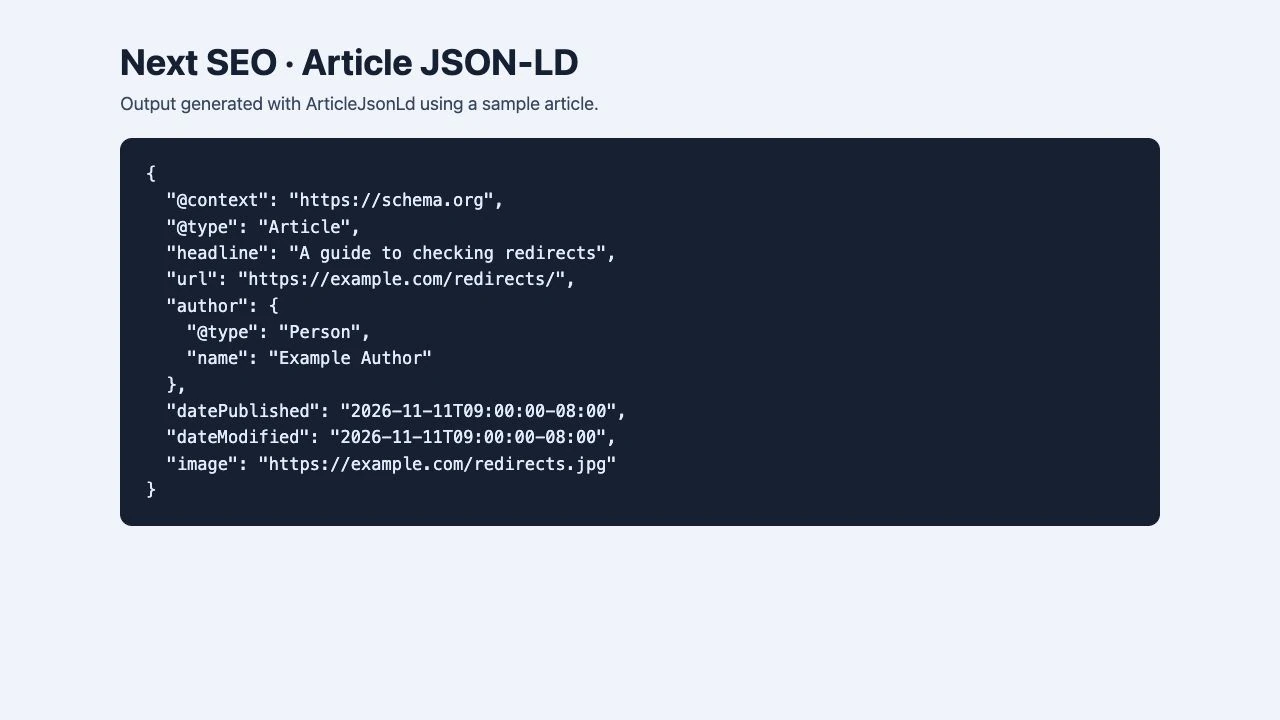
Use the sample below in a test route, then replace the sample fields with real values for the article you are rendering.
import { ArticleJsonLd } from "next-seo"; export default function ArticlePage() { return ( <> <ArticleJsonLd headline="A guide to checking redirects" author="Example Author" datePublished="2026-11-09T09:00:00-08:00" image="https://example.com/images/redirects.jpg" /> <article> <h1>A guide to checking redirects</h1> <p>Start with the source URL and follow each hop.</p> </article> </> ); } - Inspect the public HTML and validate the JSON-LD. Check for a second Article entity from another integration before shipping.
This example uses the App Router import. For the Pages Router, consult the repository’s next-seo/pages examples. Use Next.js metadata for standard titles and descriptions.
Where Next SEO fits
Use Next SEO when a Next.js project needs reusable structured-data components across several page templates.
- When to choose another tool
- Use the framework’s metadata features when your only task is setting page titles and descriptions. A small JSON-LD implementation can suit a single template.
- First evaluation
- Pick one public article template and add its structured data. Inspect the deployed HTML and check that the headline, author, and canonical URL match the page. Check for an existing Article entity before adding another.
- How to interpret the result
- A validator can confirm the markup is readable. Review whether the values describe visible content and whether the page meets the search feature’s requirements.
Reviews and discussion
Reader reviews
Be the first to share your experience with this tool.
Discussion
Ask a question or share a setup tip.
Flag an outdated detail
Include the field that needs updating and a source link. Copy your draft, then use the corrections policy to contact the editorial team.
Write a review or join the discussion