Control Google AI Previews with nosnippet, max-snippet, and data-nosnippet
Map Google's nosnippet, max-snippet, and data-nosnippet controls to their documented effects across Search, AI Overviews, and AI Mode.
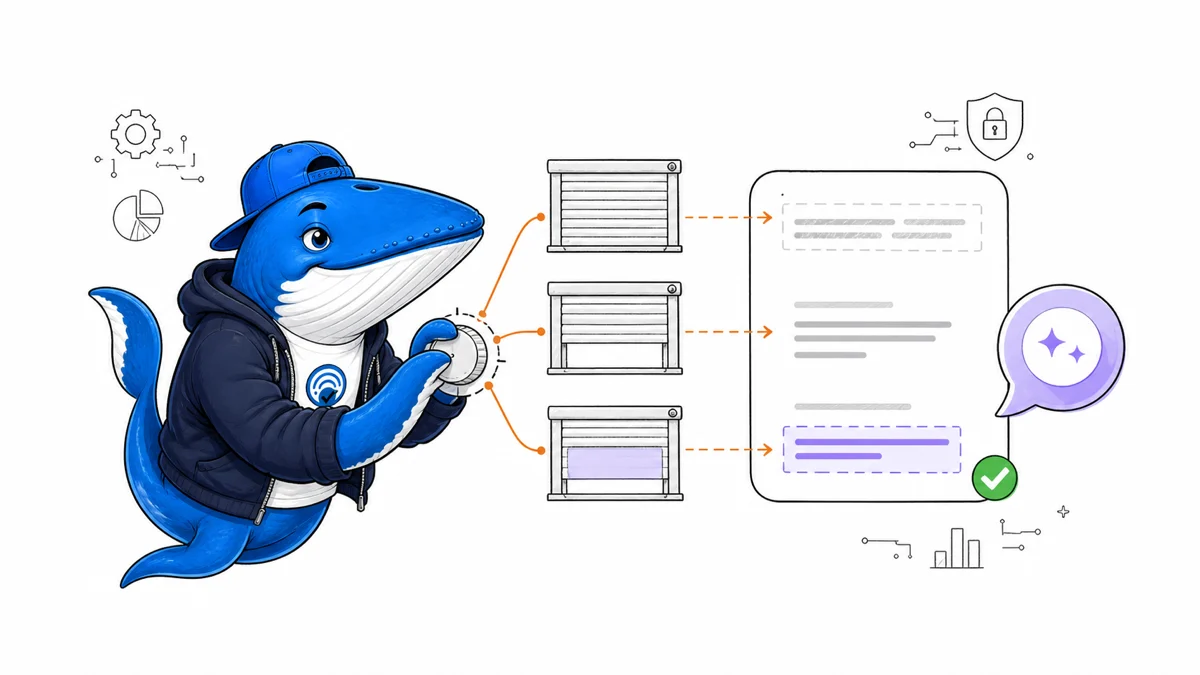
Published August 9, 2026: Google’s nosnippet, max-snippet, and data-nosnippet controls now have an explicit AI-search consequence. Google documents that they apply across Search surfaces including AI Overviews and AI Mode, and can prevent or limit content from being used as a direct input there.
This is a control map, not a promise that unrestricted content will appear in an AI answer. Use it to choose the smallest restriction that matches a real publishing need, then verify that Google can crawl the directive and has had time to recrawl the page.
Choose the control by scope
| Control | Scope | Documented effect |
|---|---|---|
nosnippet | Whole page or resource | No text snippet or video preview; prevents direct input to AI Overviews and AI Mode |
max-snippet:N | Whole page | Limits the text preview and direct-input amount to a maximum character count |
max-snippet:0 | Whole page | Equivalent to nosnippet |
max-snippet:-1 | Whole page | No publisher-set length limit |
data-nosnippet | Selected span, div, or section | Excludes that text from snippets |
noindex solves a different problem: it tells Google not to show the page in search results. Do not use it when the actual requirement is to keep one paragraph or a limited amount of text out of previews.
Understand the AI Mode boundary
Google says nosnippet applies to web search, Images, Discover, AI Overviews, and AI Mode. It also prevents the page content from being used as a direct input for AI Overviews and AI Mode. max-snippet limits the amount that may be used as a direct input.
That wording should not be stretched into a complete data-use policy. It describes Google’s Search presentation controls and their direct-input effect. It does not say that adding max-snippet:-1 makes a page eligible for inclusion, guarantees a citation, or improves ranking. Eligibility, selection, and presentation remain separate outcomes.
It also does not override a separate permission route. Google’s documentation notes that max-snippet may not limit uses separately authorized through structured data or a license agreement. Audit those channels independently.
Implement data-nosnippet safely
Use the boolean attribute only on supported span, div, or section elements. The attribute’s value is ignored: data-nosnippet="false" still activates it. Close the HTML correctly, because an unclosed container can unintentionally exclude everything that follows.
Google may extract data-nosnippet before or after rendering. Its guidance advises against adding or removing the attribute from existing nodes with JavaScript. If a script creates the element, include the attribute when that element first enters the DOM.
<p>Public summary.
  <span data-nosnippet>Subscriber-only context.</span>
</p>
Do not hide a claim’s qualification while leaving the claim available. A snippet that can quote the conclusion but not its limit may become less accurate. Treat the selectable unit as an editorial passage, not merely a legal string.
Audit conflicts and delivery
- Check the final HTML and HTTP headers for every robots directive.
- Confirm that robots.txt allows Googlebot to crawl the page; a crawler cannot follow a directive it cannot retrieve.
- Resolve plugin, CDN, and application conflicts. Google applies the more restrictive rule when directives conflict.
- Validate the mobile-rendered DOM, not only the editor preview.
- Request recrawling where appropriate and allow time for Google to process the new state.
- Record the exact directive and date before interpreting presentation changes.
A common failure is a WordPress SEO plugin emitting max-snippet:-1 while an application header or CDN rule emits nosnippet. The effective result is the more restrictive combination. Capture both the response headers and document markup.
Use a decision record
For each restricted page, record the business reason, affected content, chosen directive, implementation owner, review date, and rollback condition. This prevents a temporary embargo, licensing requirement, or privacy concern from becoming a permanent sitewide restriction.
Test the visible page for humans after the change. Preview controls are not a substitute for access control: sensitive or private information should not be publicly served in the first place. Use authentication or remove the content when confidentiality is required.
Pair this record with the publisher-control outcome map so the team does not confuse crawler access, indexing, preview use, citations, referrals, and training permissions.
Ask a question or join the discussion